Why Your Wi-Fi Keeps Dropping Your Connected Devices (And How to Fix It)
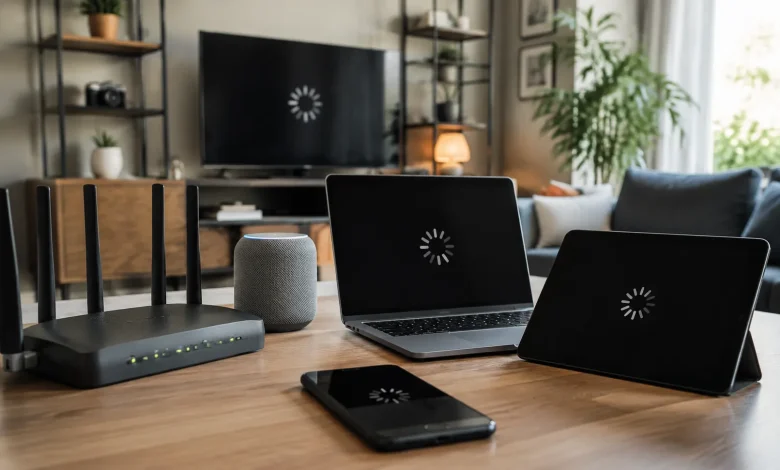
There’s a particular kind of frustration that comes with a dropped Wi-Fi connection not the dramatic kind where everything goes dark, but the slow, maddening kind. Your laptop stays connected. Your phone shows full bars. But the smart TV loses the stream, the work tablet can’t load a page, and somewhere in another room, a smart speaker just stopped responding. You restart the router. Things come back. Twenty minutes later, it happens again.
This isn’t random. There are real, specific reasons your network keeps shedding devices, and most of them have nothing to do with your internet provider.
Your Router Is Doing Too Much With Too Little
Most home routers ship with a maximum connection limit that sounds generous on paper 32, 50, sometimes 64 simultaneous devices but that number describes a theoretical ceiling, not a practical one. In reality, routers begin to struggle well before hitting their hard limits. Each connected device isn’t just taking up a slot. It’s consuming processing power, memory, and a share of the router’s radio bandwidth. When too many devices actively request data at the same time, the router’s onboard processor starts queuing and dropping requests. The devices that get dropped first are usually the ones with the weakest signal or the lowest priority in the router’s internal traffic management often smart home gadgets, older tablets, or anything running on the 2.4 GHz band that’s already fighting for airspace.
The fix here isn’t always a new router. Sometimes it’s load distribution. If you have a dual-band or tri-band router, make sure you’re not cramming every device onto the same frequency. Push high-bandwidth devices like streaming boxes and gaming consoles to 5GHz. Let smart plugs, sensors, and other low-demand devices sit on2.4 GHz. This alone can reduce the competition that causes the processor to buckle.
The2.4 GHz Band Is More Crowded Than You Think
Speaking of 2.4 GHz it’s become a genuinely hostile environment in most neighborhoods. The band only has three non-overlapping channels (1, 6, and 11), and every router in your building or on your street is competing for those same channels. Microwave ovens, baby monitors, Bluetooth devices, and even certain older cordless phones all operate in the same frequency range. When the interference reaches a certain level, your router doesn’t just slow down it starts dropping connections entirely, particularly for devices that are already on the edge of range.
Run a Wi-Fi analyzer on your phone. There are free tools that show you exactly which channels are congested in your area. If everyone nearby is on channel 6, move your router to channel 1 or 11. It’s a two-minute change in your router’s admin settings, and the improvement can be immediate and significant.
DHCP Lease Exhaustion Is a Surprisingly Common Culprit
This one catches most people completely off guard. Every device on your network gets assigned a local IP address through a process called DHCP. Your router holds a pool of available addresses and hands them out with a time limit the lease. When a device disconnects and reconnects, it’s supposed to renew or receive a new lease. But if your IP pool is too small, or if old leases from devices that no longer exist are still occupying slots, new devices can fail to connect at all.
Think about how many devices have touched your network over the years. Every guest phone, every old laptop, every smart device you tried and returned. Those lease records accumulate. Meanwhile, the default DHCP pool on many consumer routers is set to something like 50 addresses. If you’ve got 40 active devices plus20 stale leases, you’ve got a problem.
Log into your router’s admin panel and look at the DHCP lease table. Clear out stale entries. Consider expanding the address pool. And if you have devices that are always on servers, network printers, security cameras assign them static IP addresses so they’re not competing for leased slots at all.
Wireless Band Steering Gone Wrong
Many modern routers offer a feature called band steering, where the router automatically moves devices between 2.4 GHz and 5 GHz based on signal conditions. The intention is smart. The execution is often messy. Some routers are aggressive about this they’ll kick a device off5 GHz the moment the signal dips slightly, pushing it to 2.4 GHz, then pull it back when conditions improve. For devices that don’t handle this handoff gracefully, the result is a momentary disconnection that looks exactly like a random drop.
Older smart home devices are especially vulnerable to this. Many of them were designed to connect to 2.4 GHz and only2.4 GHz. When a band-steering router tries to push them to 5 GHz, they just fall off the network instead of negotiating the move. The fix is straightforward but slightly annoying: create separate SSIDs for your two bands. Name them differently something like “HomeNetwork_2G” and “HomeNetwork_5G” and manually assign your older or stubborn devices to the appropriate band. You lose the convenience of a unified network name, but you gain stability.
Firmware and Driver Issues You’ve Probably Never Checked
Router firmware updates exist for a reason. Manufacturers push them to patch security vulnerabilities, but also to fix bugs in the connection handling code bugs that cause exactly the kind of random device drops you’re experiencing. Most people set up their router once and never touch it again. The firmware from three years ago that’s still running on your device may have known issues that were resolved in version 2.1.4, which you never installed.
The same applies on the device side. Your laptop’s Wi-Fi driver, your phone’s network stack, your smart TV’s firmware all of these components affect how gracefully your device maintains and re-establishes connections. A device with outdated drivers may not handle the DHCP renewal process correctly, may not respond to the router’s keep-alive signals, or may simply interpret a minor interference event as a full disconnect rather than a temporary blip.
Check your router manufacturer’s website for current firmware. Most modern routers have an auto-update option buried in the settings enable it. And if one specific device keeps dropping while others stay connected, update that device’s drivers or firmware before you spend another hour restarting things at the router level.
Router Placement and Physical Interference
Range is the obvious issue people think of first, but it’s rarely just about distance. The material between your router and your devices matters enormously. A concrete wall can reduce 5 GHz signal strength by 50 percent or more. Metal objects filing cabinets, refrigerators, even certain mirrors reflect and scatter wireless signals in ways that create dead zones unpredictably close to the router itself.
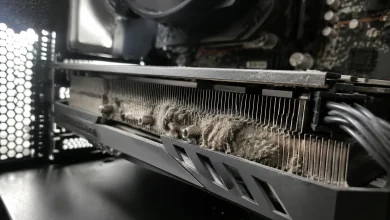
There’s also the question of heat. Routers generate heat, and when they’re stuffed into entertainment centers or closets with no airflow, they thermal-throttle. The processor slows down, connection management degrades, and devices start dropping. This is more common than people realize, especially in summer months or in apartments where the router lives inside a cabinet.
Position your router in the open, ideally elevated, away from microwaves and cordless phone bases, with clearance on all sides. If you have a large or multi-story home, a mesh network system will serve you far better than a single router pushed to its coverage limits not because mesh is inherently magical, but because it reduces the signal degradation and processing strain that causes drops in the first place.
The pattern behind most of these problems is the same: routers are quiet devices that we install and forget, while the networks they manage keep growing. More devices, more interference, more demand. The hardware that was sized for your needs in 2021 may genuinely be undersized for your needs now. But before you replace anything, work through the logical checklist. Channel congestion, DHCP exhaustion, firmware lag, band steering conflicts these are free fixes. They just require knowing where to look.