Is Your Gmail Account Secure? Run This 2-Minute Audit

Most people treat their Gmail account like a front door they locked years ago and never thought about again. The key is somewhere on the ring, the door looks closed, and that feels like enough. It isn’t.
Gmail accounts are among the most targeted credentials on the internet not because Google’s infrastructure is weak, but because your inbox is the skeleton key to your entire digital life. Password reset links, bank confirmations, work communications, two-factor codes. Whoever controls your Gmail controls far more than your email. That’s the part most people don’t sit with long enough.
The good news: you don’t need to be a security professional to know whether your account is genuinely protected. You just need about two minutes and the willingness to actually look.
Why Your Gmail Is a Higher-Value Target Than You Think
Here’s a mental model worth keeping. Hackers don’t always want to read your email. What they want is leverage. And an email inbox especially one you’ve had for years is a goldmine of leverage.
Think about what lives in yours. Receipts that confirm which banks you use. Old account registration emails. Medical appointment reminders. Shipping notifications that reveal your home address. None of that seems dangerous in isolation. Assembled together, it builds a profile that can be used for identity fraud, social engineering, or targeted phishing against your contacts.
The threat landscape shifted significantly around 2019-2020 when credential-stuffing attacks scaled dramatically. These aren’t hackers typing at a keyboard like in the movies. They’re automated systems running billions of username-password combinations leaked from other breaches against Gmail logins in seconds. If you’ve ever reused a password anywhere, you’ve already been in the crosshairs.
Step One: Check Where Your Account Is Signed In
Open Gmail on a desktop browser. Scroll to the very bottom of your inbox. In the bottom-right corner, you’ll see a small line of text that says something like “Last account activity.” Click the “Details” link next to it.
What opens is a window showing every active session tied to your Google account device type, browser or app used, approximate location, and time of last access. Spend twenty seconds actually reading it.
You’re looking for anything unfamiliar. A login from a city you’ve never been to. A browser you don’t use. A session that’s been active for months on a device you don’t recognize. Any of these is a flag. Google also offers a “Sign out all other web sessions” button in that same window, which terminates every active session except the one you’re currently in. If something looks off, use it immediately.
This step alone catches a surprising number of account compromises that have been quietly running in the background for weeks.
Step Two: Review Your Connected Third-Party Apps
This is the one most people skip entirely, and it’s often where the real exposure lives.
Over the years you’ve probably granted various apps and services access to your Google account a calendar tool here, a productivity app there, a plugin you tried once and forgot about. Each of those connections is a potential vulnerability. If the third-party app suffers its own breach, or if it was low-quality software to begin with, that access becomes a liability.
Go to myaccount.google.com, then navigate to Security, then scroll down to “Third-party apps with account access.” Click “Manage third-party access.”
You’ll see a list. Some of it will be recognizable apps you actively use, services you genuinely need. Some of it will be confusing. Maybe there’s an app you don’t remember authorizing, or one you used for a single task in2021 and never touched again. Revoke anything you don’t recognize or no longer use. The process is one click per app, and it costs you nothing to remove access from tools you aren’t actively relying on.
Pay particular attention to apps that requested broad access specifically anything that says it can “read, compose, send, and permanently delete all your email.” That level of access is rarely necessary and almost always worth reconsidering.
Step Three: Look at Your Recovery Information
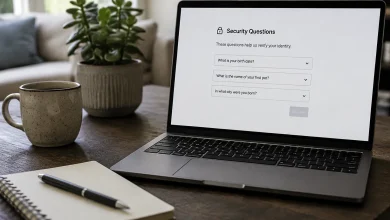
Account recovery is both a security tool and a potential attack surface. If your recovery phone number or backup email is outdated, you risk being locked out of your own account if Google ever flags suspicious activity. More critically, if someone else gains control of your recovery phone number through SIM-swapping, for example they can potentially use it to take over your account.
Still in myaccount.google.com, go to Security and look at the “Ways we can verify it’s you” section. Confirm that your recovery phone number is a line you currently control, not an old number that’s been recycled to someone else. Check that your recovery email is an account you actively manage and that is itself secured properly.
This takes thirty seconds. It’s also the step that people who’ve been locked out of accounts forever wish they’d taken.
Step Four: Confirm Two-Factor Authentication Is Actually On and What Type
Two-factor authentication is widely recommended and widely misunderstood. Not all2FA is equal, and having it technically enabled doesn’t always mean you’re as protected as you think.
In the Security section of your Google account, look for “2-Step Verification.” Check whether it’s on. Then check what method is configured.
SMS text message codes are better than nothing, but they’re the weakest form of 2FA. SIM-swapping attacks where a criminal convinces your carrier to transfer your number to a SIM card they control can defeat SMS-based authentication entirely. It happens more than carriers admit.
Google Authenticator or another time-based one-time password (TOTP) app is meaningfully stronger. A physical security key is stronger still. And Google’s own passkey system, which uses your device’s biometric or PIN authentication directly, is increasingly the recommended standard harder to phish, impossible to intercept over a network, and genuinely seamless once set up.
If you’re currently using SMS codes, seriously consider upgrading. Go to the2-Step Verification section, scroll through the options, and add a more robust method. You can keep SMS as a backup while making the authenticator app your primary option.
The Thing About Alerts You’re Probably Ignoring
Google sends security alerts emails and sometimes phone notifications when your account is accessed from a new device, when your password changes, or when a suspicious sign-in is detected. These land in your inbox and most people either glance at them without reading or have trained themselves to dismiss them as noise.
The next time one arrives, actually open it. Review the device and location. If it was you, great. If it wasn’t, Google provides a direct link in that alert to secure your account immediately. That link is faster than trying to navigate there manually in a moment of stress.
You might also consider setting up Google’s Advanced Protection Program if you’re someone with elevated risk journalists, activists, people in public-facing roles, or anyone who has been targeted before. It adds stricter controls and limits what third-party apps can access, at the cost of some convenience.
What Two Minutes Actually Buys You
None of this is about paranoia. It’s about closing the gap between the security you think you have and the security you actually have.
The accounts that get compromised aren’t usually the ones being aggressively targeted by sophisticated actors. They’re the ones that had one old saved session left open, one forgotten app with broad permissions, one outdated recovery phone number that got recycled. Small, mundane oversights that compound over time.
Run through these steps once. Set a reminder to do it again in six months. Your inbox has more riding on it than most people acknowledge and the audit genuinely does take less time than your next coffee break.